
Work with the plan
Settings for Jira admins
One settings page for the whole site. Most sites never need it: the defaults use Start date, Due date, the Blocks link type and a Monday-to-Friday week.
Open the settings
In Jira, go to Apps → Manage apps, find YTI Gantt and choose Configure. Only Jira administrators can open it.Change what you need and save
Changes apply the next time someone opens or reloads a chart.
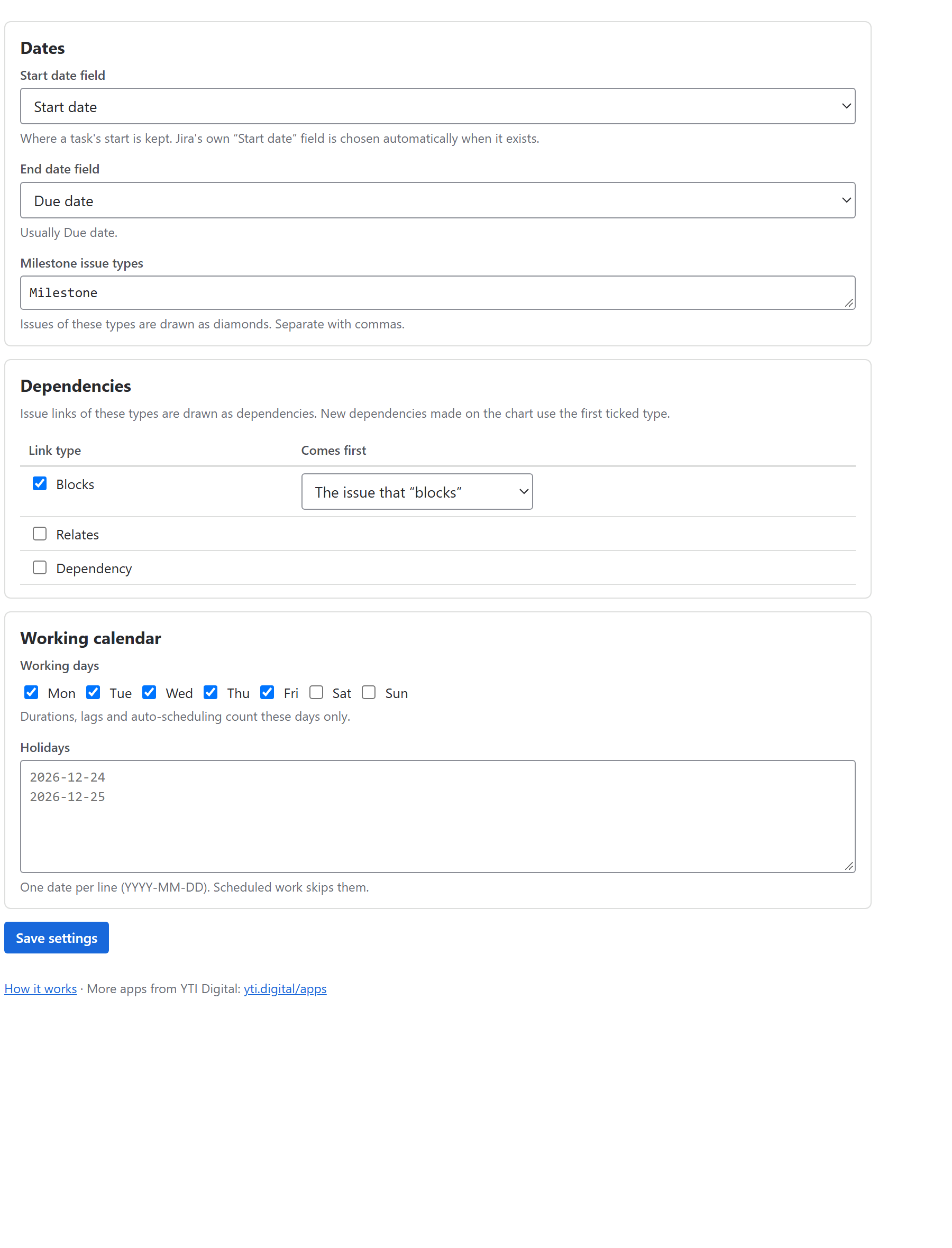
Dates
- Start date field — any date field of your site. The first time the app runs it picks Jira's
Start date(it recognises it in every Jira language). If you choose none, every bar spans only its end date. - End date field —
Due dateby default, or any other date field. - Milestone issue types — issues of these types are drawn as diamonds. Default:
Milestone.
Fields and screens
Dates are written to the fields you choose, so those fields must be on the issue's edit screen for the project, as for any edit in Jira. If a field is missing from the screen, Jira refuses the change and the chart says why.
Dependencies
Tick the Jira link types that mean "this has to happen first", and for each say which side comes first. For Blocks, the issue that blocks comes first. Links of other types (Relates, Duplicates…) are ignored by the chart. New dependencies drawn on the chart use the first ticked type.
Working calendar
- Working days — Monday to Friday by default; tick the days your team works.
- Holidays — one date per line, as
2026-12-25. They are shaded on the chart and skipped when durations, lag and slack are counted.
The calendar is the same for every project and person on the site.