
Work with the plan
Import from MS Project
Bring a plan made in Microsoft Project into Jira in one step: its tasks become issues in the project, with their outline, dates and dependencies.
Save the plan as XML
The import reads Microsoft Project XML (MSPDI), the open format of MS Project. In MS Project choose File → Save As and pick XML Format (*.xml). ProjectLibre, GanttProject and most planning tools save it too, and so does this chart's own MS Project export. Binary .mpp files cannot be read: save them as XML first.
To try it first, download this sample plan (a website relaunch: 14 tasks, 9 dependencies) and import it into a test project.
Import it
Open the Gantt tab of the project
The issues are created in this project. In an empty project the chart offers the import right away.Choose Export → Import from MS Project…
Pick the XML file or drop it on the dialog.Check what each task becomes
The dialog lists every task with the issue type it will get and its dates. Change the types if your project uses others.Create the issues
A bar shows the progress; keep the page open until the summary appears, then Show the plan.
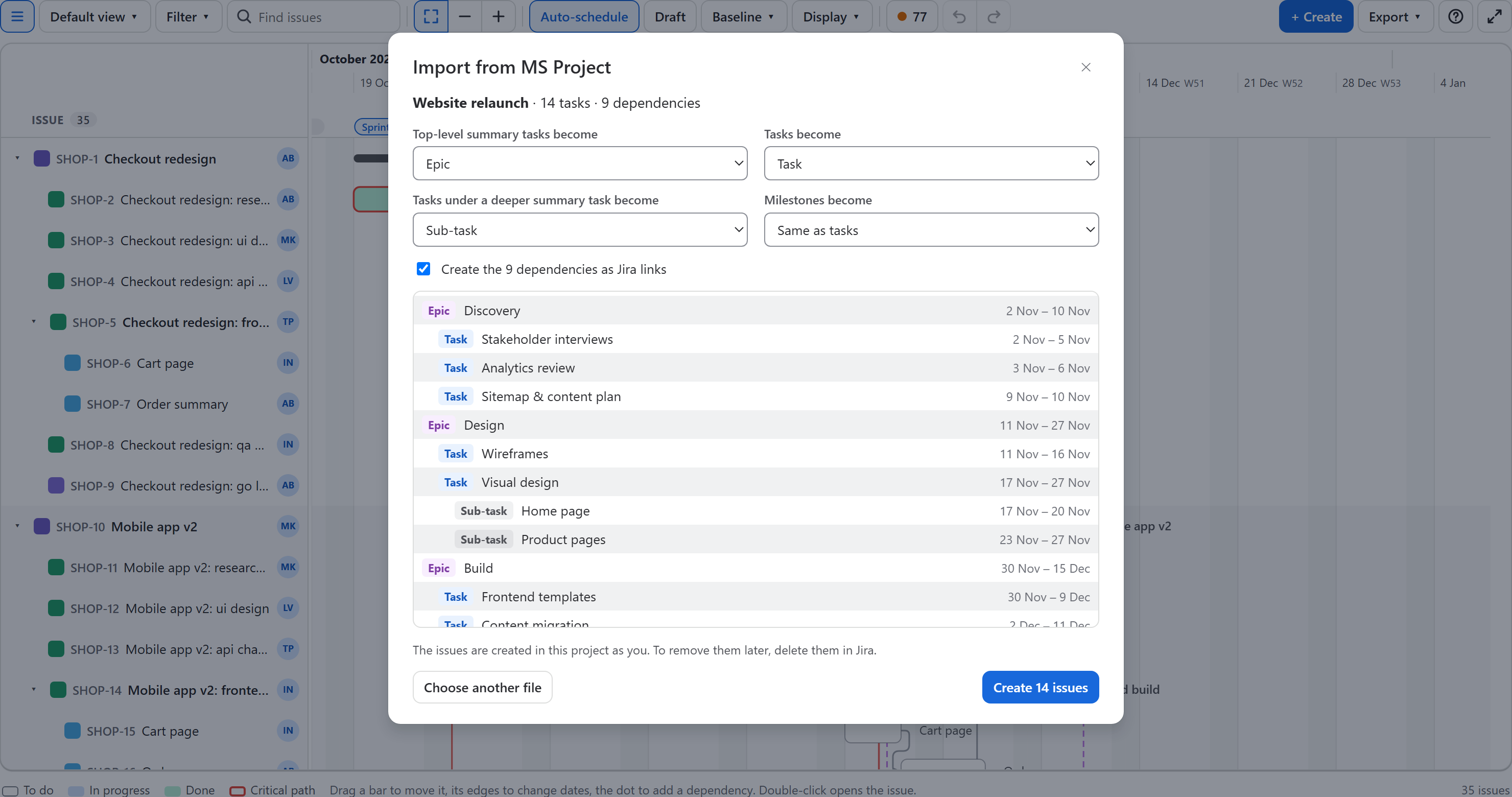
How the outline maps to Jira
Jira has three levels (epic, issue, subtask) where an outline can have many. The import keeps as much of the structure as Jira can show:
| In MS Project | In Jira |
|---|---|
| A summary task at the top level | An epic (or the type you choose) |
| A task under it, at any depth | An issue of the chosen type, with the epic as its parent |
| A summary task further down | An issue; the tasks under it become its subtasks (deeper levels go under it too) |
| A milestone | The milestone type, if you choose one; otherwise the same type as tasks |
| A task at the top level, not a summary | An issue without a parent |
| Start and finish | The start and end date fields the chart uses (see Settings) |
| A dependency (FS, SS, FF, SF) with lag | A Jira issue link of the dependency type, with its type and lag in working days |
- Lags in hours or days become working days; percentage lags are left out (0).
- The project summary task, blank rows and links to tasks outside the file are skipped.
- Names, dates and dependencies come over; resources, costs, notes and custom fields do not. Assign people on the chart afterwards (click an issue, then its assignee).
- Up to 2,000 tasks per file.
Importing a plan exported from the chart
A task whose name starts with the key of an issue on the chart (as in the chart's own export, for example SHOP-12 Payment page) is not created again: the issue gets the task's dates. So you can export a plan, rework the dates in MS Project and import it back. Dependencies that are already on the chart are not doubled.
When Jira refuses something
The summary lists every task Jira did not accept and why, for example a field your project requires on creation. The other tasks are still created. If the dates cannot be written (the start field is not on the project's screens), the issue is created without dates and the summary says so: put the field on the screen, or set the dates on the chart.
Created as you, not undoable from the chart
The issues are created with your Jira account and need the Create issues permission (and Link issues for the dependencies). Undo on the chart does not remove them; to take an import back, delete the issues in Jira, for example by searching for the ones created today.