
Plan
Schedule issues without dates
A backlog, an imported plan or issues just created have no dates yet. Give them one by one, or all at once from their estimates.
One issue
- + dates next to its name in the list: a working week from today, or right after what it waits for.
- Press and drag across the days in its row on the chart: a ghost bar follows the pointer and says what letting go does.
- In the details panel: type a start and an end, or choose Plan it for a week.
All at once
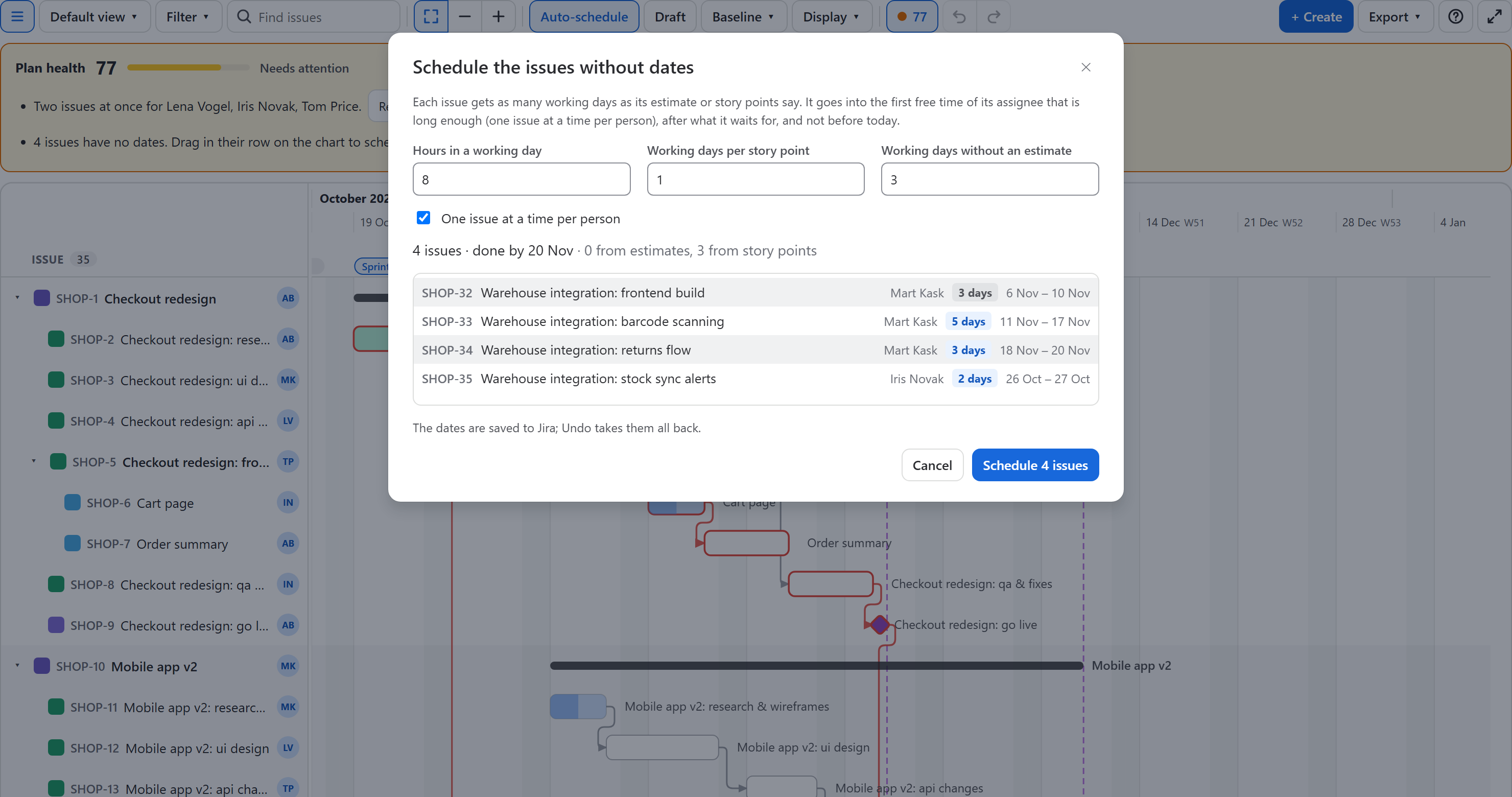
Schedule them… appears in the hint above the chart when most issues have no dates, and in Plan health whenever some have none. The dialog shows the whole plan before anything is written.
How long each issue takes
| Jira has | Length in working days | Example |
|---|---|---|
| An original estimate | The estimate in hours ÷ hours in a working day, rounded up | 12 h with 8-hour days → 2 days |
| Story points (no estimate) | Points × working days per story point, rounded up | 5 points × 1 → 5 days |
| Neither | The number you set for issues without an estimate | 3 days |
The three numbers are in the dialog and your browser remembers them. The tag next to each issue says where its length came from. The story points field is the one called Story point estimate (team-managed projects) or Story Points(company-managed), found by name.
When each issue starts
- Not before today, on a working day of the working calendar.
- After what it waits for: dependencies hold, and an issue that waits for another undated issue is placed after it.
- One issue at a time per person: each goes into the first free time of its assignee that is long enough, between the issues they already have and those placed before it. Turn this off to start everyone's issues as early as their dependencies allow.
- Unassigned issues are not queued: they start as early as their dependencies allow.
- Issues are placed in board order (the order of the plan's JQL), so the higher-ranked issue gets the earlier slot.
Write the dates
Schedule N issues writes all the dates as one step: one Undo takes them all back to no dates. In draft mode they go into the draft instead, to review and publish. With a search active, only the issues it finds are scheduled, so you can schedule one epic or one person at a time.
After an import
A plan imported from MS Project, or drafted by the Rovo agent, comes with its dates. Issues created in Jira without dates, or added under an epic in the details panel, are the usual candidates for Schedule them….