
Plan
Read the chart
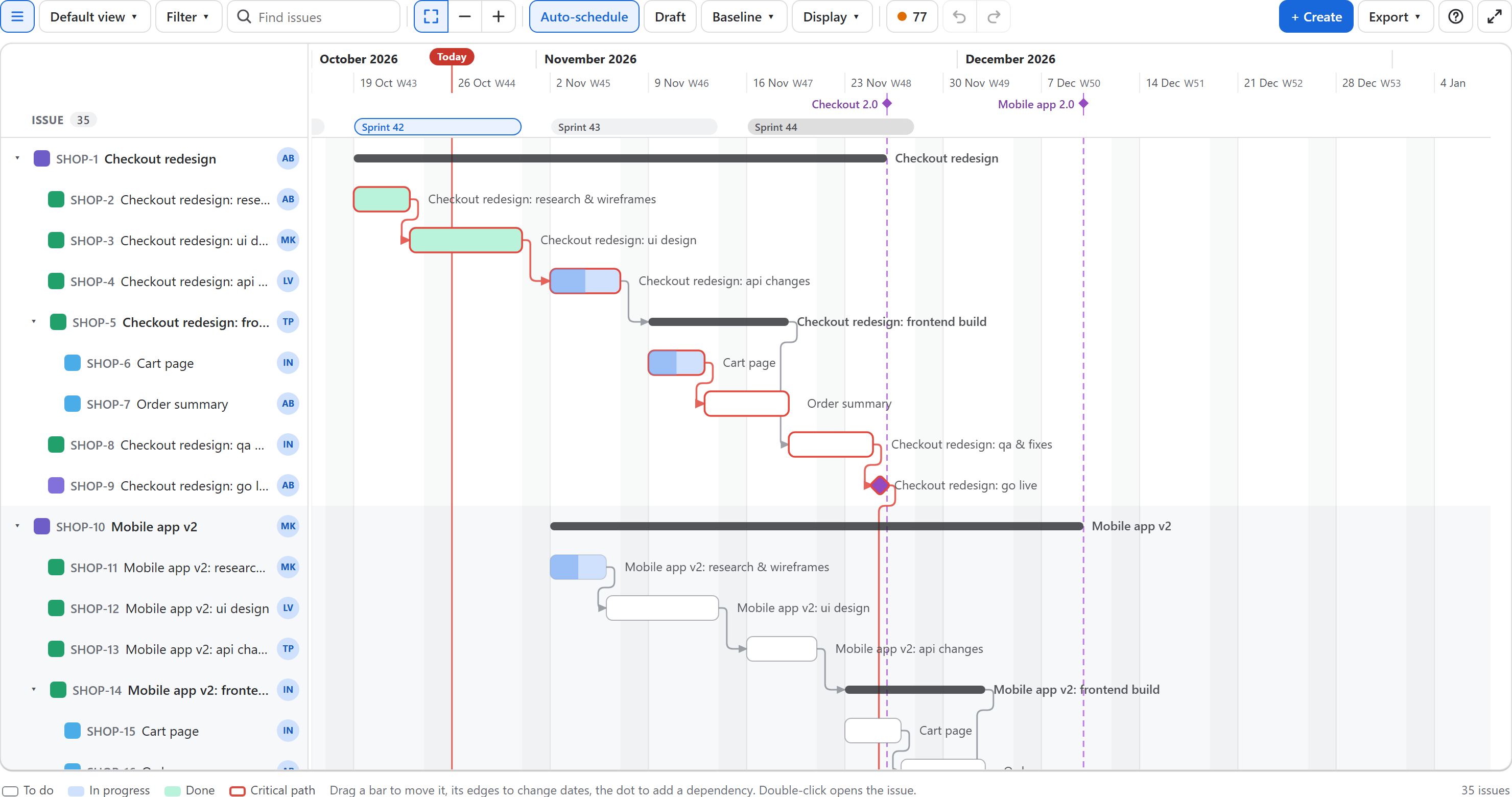
The whole plan on one screen: the issues as bars on a timeline, their names in a list on the left. Everything comes from Jira: summary, type, status, assignee and the two date fields.
The list
- Issue: type icon, key, summary and the assignee's avatar. Epics, stories and subtasks are nested; the arrow folds a parent. Click the key to open the issue. Issues without dates say no dates.
- Display → Date columns adds Start, End and working days next to the names; double-click one to type a date.
- The ☰ button in the toolbar hides the list: the timeline gets the whole width and the bars show the keys too.
- A ↗ number after a summary counts dependencies on issues outside this plan (they are kept, just not drawn).
- Drag the line between the list and the timeline to make the list wider or narrower.
The bars
| You see | It means |
|---|---|
| A white bar with a grey outline | To do |
| A blue bar | In progress. The darker part from the left shows progress from time tracking (time spent against remaining). |
| A green bar | Done |
| The name inside or next to a bar | Inside when it fits, otherwise next to the bar |
| A red outline | On the critical path: it decides the finish date |
| A dashed orange outline | Starts earlier than one of its dependencies allows |
| A slim dark bar with a name | A parent (epic or story with subtasks). It spans its children and has no dates of its own on the chart. |
| A shaded band | Every other epic with everything under it, so the plan reads in blocks |
| A short glow | Issues that a move has just pushed along |
| A diamond | A milestone (issue type Milestone, or the types your admin chose) |
| A thin grey bar under a bar | Where the issue was in the baseline you are comparing with |
| A red line with Today | Today |
| A dashed line with a flag | A release (fix version) of the project, on its release date: purple when upcoming, red when overdue, green when released |
Hover a bar to see its dates, working days, slack, progress and, with a baseline shown, how late or early it is.
Shaded columns are non-working days (weekends and holidays from the working calendar) when the scale shows days or weeks.
Releases
Releases (fix versions) of the project that have a release date and are not archived show as dashed lines, with their names in a row under the dates. Hover a flag for the date and whether it is released. Compare them with the bars to see whether the work planned for a release ends before it.
Sprints
If the project has a Scrum board, its sprints appear as a row of bands under the dates: the active sprint in blue, the last closed ones and the planned ones in grey. Hover a band for its dates. Turn them off in Display → Sprints.
Zoom and moving around
The chart opens with the whole plan on one screen. Zoom with Ctrl + mouse wheel (or − and +), drag an empty spot to move around, and press 0 for the whole plan again: see Zoom and find your way.
Overdue issues
An issue whose end date has passed while it is not done gets a dashed orange line from its end to today: the length of the line is how late it is. Hover it, or click the issue, for the number of working days. The legend counts them, and Plan health lists them, the latest first, with a click to go to each.
Group and color
Display → Group by arranges the rows by hierarchy (the default), assignee, status or issue type; in groups, each group gets a header row with the dates its issues span. Color bars by status, assignee or type; the legend under the chart explains the colors. Every option of the Display menu is described in Zoom and find your way, the workload panel in Workload and overlaps.
Next
Click an issue for its details panel, or see how to move and schedule issues.