
Plan
Draft mode
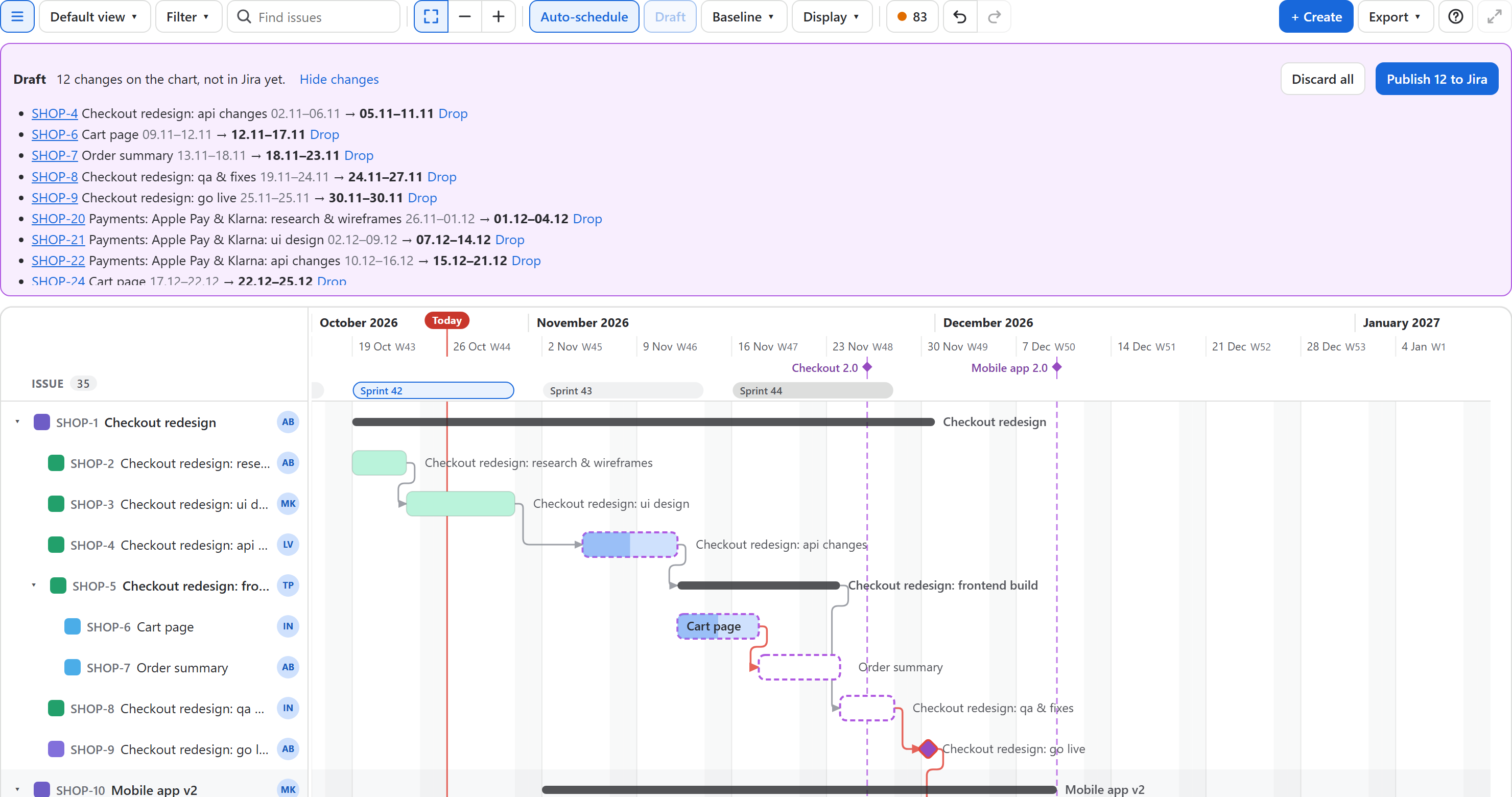
Try a what-if without anyone seeing it: move issues around on the chart, look at the result, then publish the dates to Jira together or throw them away.
Use it
Turn it on
Choose Draft in the toolbar.Change the plan
Drag bars, type dates, schedule issues without dates or resolve overlaps as usual. Changed bars get a dashed purple outline and a bar above the chart counts the changes.Review
Choose Review changes: every issue with its dates in Jira and on the chart. Drop puts one back; click a key to go to it.Publish or discard
Choose Publish N to Jira to write them all, or Discard all to return to the dates Jira has.
What stays in the draft, and what does not
| Change | In draft mode |
|---|---|
| Dates (drag, type, + dates, Schedule them, Resolve overlaps, auto-scheduling) | Kept in the draft until you publish |
| Dependencies (add, remove, type, lag) | Saved at once: they are Jira links |
| Name, status, assignee, parent | Saved at once |
| New issues (Create, quick add, import) | Created at once |
Details
- Undo and redo work inside the draft. Moving an issue back to its Jira dates takes it out of the draft.
- If Jira refuses some dates when you publish (for example an issue you may not edit), those go back and the message says which and why; the others are saved.
- Publishing writes the dates on the chart; it does not merge them with changes others made in Jira meanwhile. Display → Reload from Jira reads Jira again and keeps your draft dates on top, so do that first when others may have moved the same issues.
- While a draft has changes, the chart does not reload by itself when you come back to its tab, and Draft stays on until you publish or discard.
- If a publish stops part-way (a lost connection, Jira busy), the chart reads back what Jira saved and keeps only the rest in the draft, so publishing again sends just what is missing.
- The Plan health score and the critical path show the draft, so you can compare a what-if before publishing it.
Publish or discard before leaving
The draft lives in the open page. Leaving the page asks first; full screen is not available while a draft has changes. For a plan you want to keep as a reference, save a baseline instead.