
Plan
Baselines
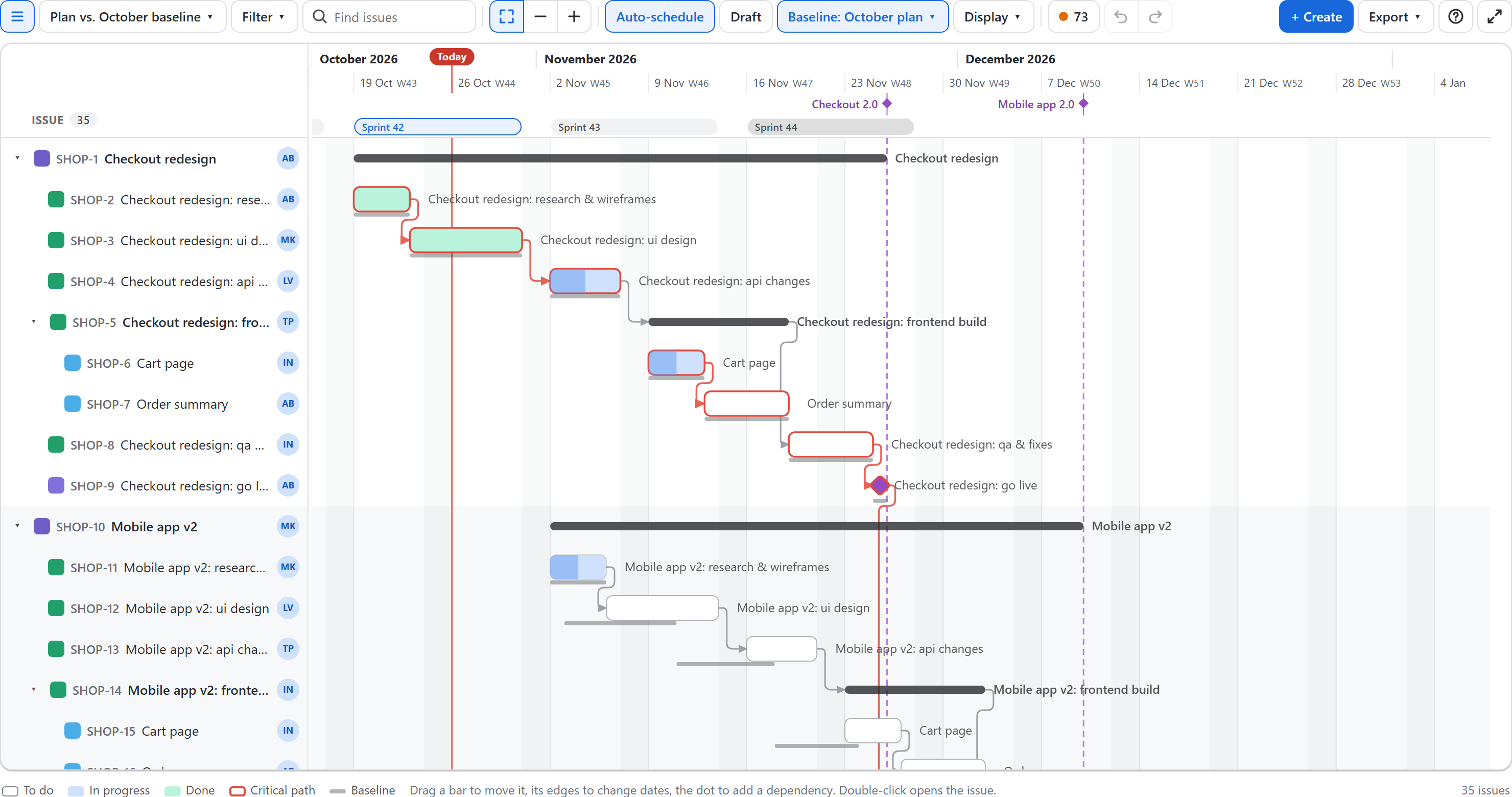
A baseline is a snapshot of the plan's dates. Show it next to the current plan to see what slipped and by how much.
Save a baseline
Open Baseline in the toolbar, type a name (for example "Plan agreed 14 Oct") and choose Save. The start and end of every scheduled issue in the chart are saved, and the new baseline is shown at once.
- Baselines belong to the project and everyone who can see the chart can show them.
- Saving or deleting one needs permission to edit or schedule issues in the project.
- A project keeps up to 20 baselines of up to 10,000 issues each. Delete old ones from the same menu: ✕, then Delete? to confirm. A deleted baseline cannot be restored.
Compare
Pick a baseline in the Baseline menu. Then:
- A thin grey bar under each issue shows where it was in the baseline.
- Hovering a bar says on plan, N days late or N days early, counting the end date in working days.
- Issues created after the baseline have no grey bar.
List what changed
With a baseline shown, Baseline → List what changed opens a summary above the chart: how many issues end later, earlier or on plan, whether the plan's finish date holds (or by how many working days it moved), and the issues that moved, the latest first. Click a key to find the issue on the chart. It is ready to paste into a status report.
Choose Don't show a baseline to hide it. To make a comparison one click away, save a view while the baseline is shown: the view opens with it.
What a baseline does not change
Baselines are stored by the app, not in Jira. Saving, showing or deleting one never changes an issue.