
Plan
The details panel
Click an issue, its bar or its row, and its details open on the right. Everything you can do by dragging can be done there by typing, plus the things Jira would otherwise need its own screen for.
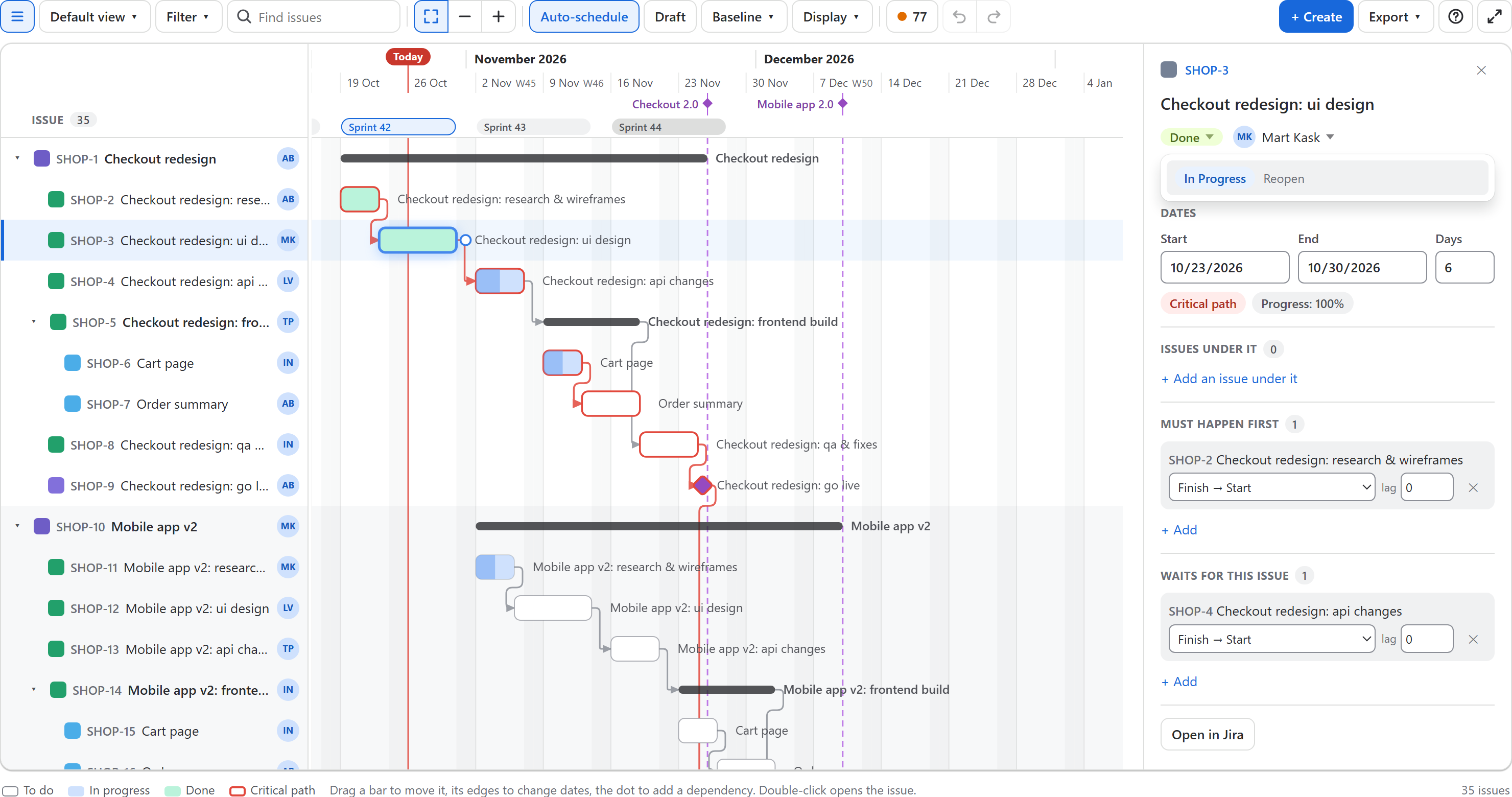
From top to bottom
| Part | Shows | Change it |
|---|---|---|
| Key | The issue type and key | Click the key to open the issue in Jira |
| Name | The summary | Click it, type, press Enter (Esc puts it back) |
| Status | The current status, coloured by category | Click for the steps its workflow allows next |
| Assignee | The person, or Unassigned | Click to pick a person or Unassigned |
| Parent | The epic or story it belongs to | Click to move it under another one |
| Dates | Start, End and working days | Type a date or a number of days |
| Facts | Critical path or slack, progress, baseline variance, overdue, in the draft | Read only |
| Issues under it | The issues of an epic or a story | Click one to go to it; + Add an issue under it |
| Must happen first / Waits for this issue | Its dependencies, with type and lag | Change the type or lag, remove (✕), + Add |
The panel closes with ✕ or Esc. The ↑ and ↓ keys still walk the issues while it is open, and the panel follows.
Name, status and assignee
- Name: long names wrap; the change is saved when you press Enter or leave the field. Spaces are tidied the way Jira keeps them.
- Status: the menu lists the workflow steps the person may take from here, with the status each leads to. A step that needs more, for example a resolution on its screen, is refused by Jira and the message says what is missing: open the issue in Jira for that one.
- Assignee: the people already on the plan are listed at once; type a name or e-mail for anyone who can be assigned in that project. Unassigned clears it.
The chart shows each change at once and puts it back if Jira refuses it. Renaming, a new assignee and a new parent can be undone with Ctrl+Z like a move; a status change cannot (choose the previous status in the menu). These changes are saved to Jira even in draft mode.
Keyboard in the menus
With the status or assignee button focused, Enter opens its menu, ↑ and ↓ walk the choices, Enterpicks one and Esc closes the menu and returns to the button.
Parent
Jira allows a parent one level up: an epic for a story or task, a story or task for a subtask. The menu offers only those, from the issues on the chart; type a key or name to narrow it. No parent takes a story out of its epic (a subtask always keeps one). The bars move into their new block at once.
Dates
| You type | What happens |
|---|---|
| Start | The issue moves to start that day and keeps its length, as when you drag it |
| End | The end moves; the start stays (unless the new end is before it) |
| Days | The length in working days; the end moves to match |
A date picked in the calendar is saved a moment later; a typed one when you press Enter or leave the field. Dates snap to working days, and with auto-scheduling on the issues that depend on it move too. An issue with no dates shows Plan it for a week. A parent's dates come from its issues, so they are shown but not typed.
Issues under it
An epic or story lists its issues (the first twelve, then how many more). + Add an issue under it opens a field: type a name and press Enter to create it, then type the next. An epic gets a standard issue (a Task when the project has one), a story gets a subtask. New issues have no dates yet: use + dates in the list, drag across their row, or schedule them all. If the project requires more fields to create an issue, Jira refuses it and the message says so; use + Create for those.
Dependencies
- Must happen first lists what the issue waits for, Waits for this issue what waits for it.
- Change a dependency's type (Finish → Start, Start → Start, Finish → Finish, Start → Finish) or its lag in working days; remove it with ✕.
- + Add links another issue of the chart: type its key or name and pick it.
- Click an issue in either list to go to it.
See Dependencies and auto-scheduling for what the types and lag mean.
Who may change what
The panel offers only what the person may do in Jira: renaming needs Edit issues, the assignee Assign issues, the status Transition issues, dependencies Link issues, new issues Create issues. Without them the panel shows the same details read-only.