Use it
Write criteria
One criterion is one thing that must be true before the issue is done. Write it as a plain line or, when behaviour matters, as a Given/When/Then scenario.
Add a plain criterion
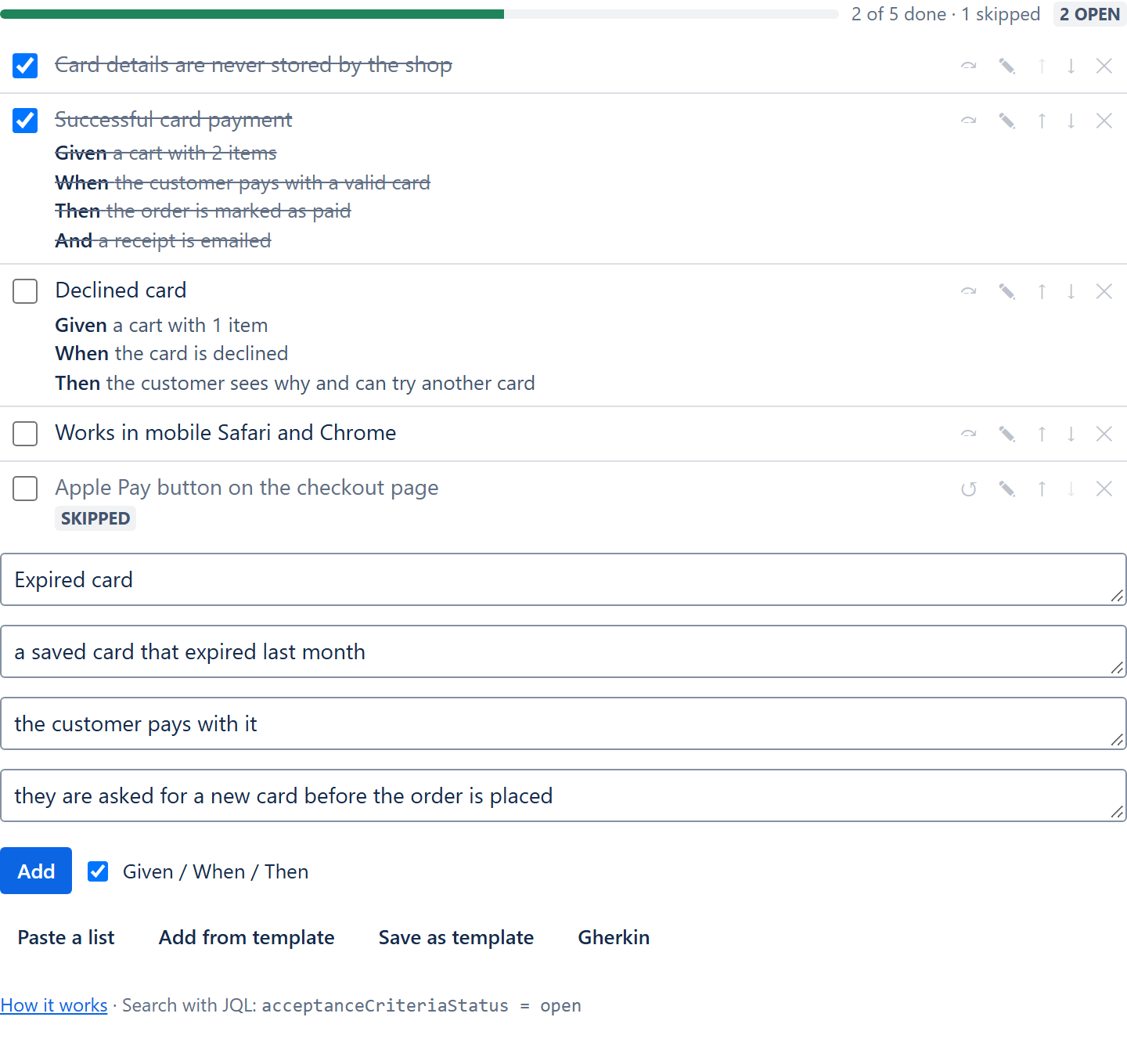
Type in Add a criterion… at the bottom of the panel and press Enter (or click Add). Shift+Enter starts a new line inside the same criterion.
Add a Given / When / Then scenario
Tick Given / When / Then next to the Add button.
Optionally give the scenario a title, then fill in Given, When and Then.
Each field can hold several lines; extra lines are shown with And, as in Gherkin. A scenario needs at least one of the three steps.
Click Add.
Statuses
| Status | How | Counts as finished |
|---|---|---|
| To do | New criteria start here | No |
| Done | Tick the checkbox | Yes |
| Skipped | The ⤼ button: the criterion does not apply to this issue | Yes |
The bar at the top shows how many are done and skipped, and a lozenge with the number still open, or Complete when none are. The same numbers drive the right-hand panel's button, the JQL fields and the workflow validator.
Edit, move and remove
- ✎ Edit opens the criterion in place, including its steps. Turning Given / When / Then off keeps only the title.
- ↑ ↓ move a criterion in the full editor (main column).
- ✕ Remove deletes it at once; Undo in the note that appears brings it back.
Limits
Up to 100 criteria per issue; 2,000 characters per criterion and 1,000 per step.
Read-only
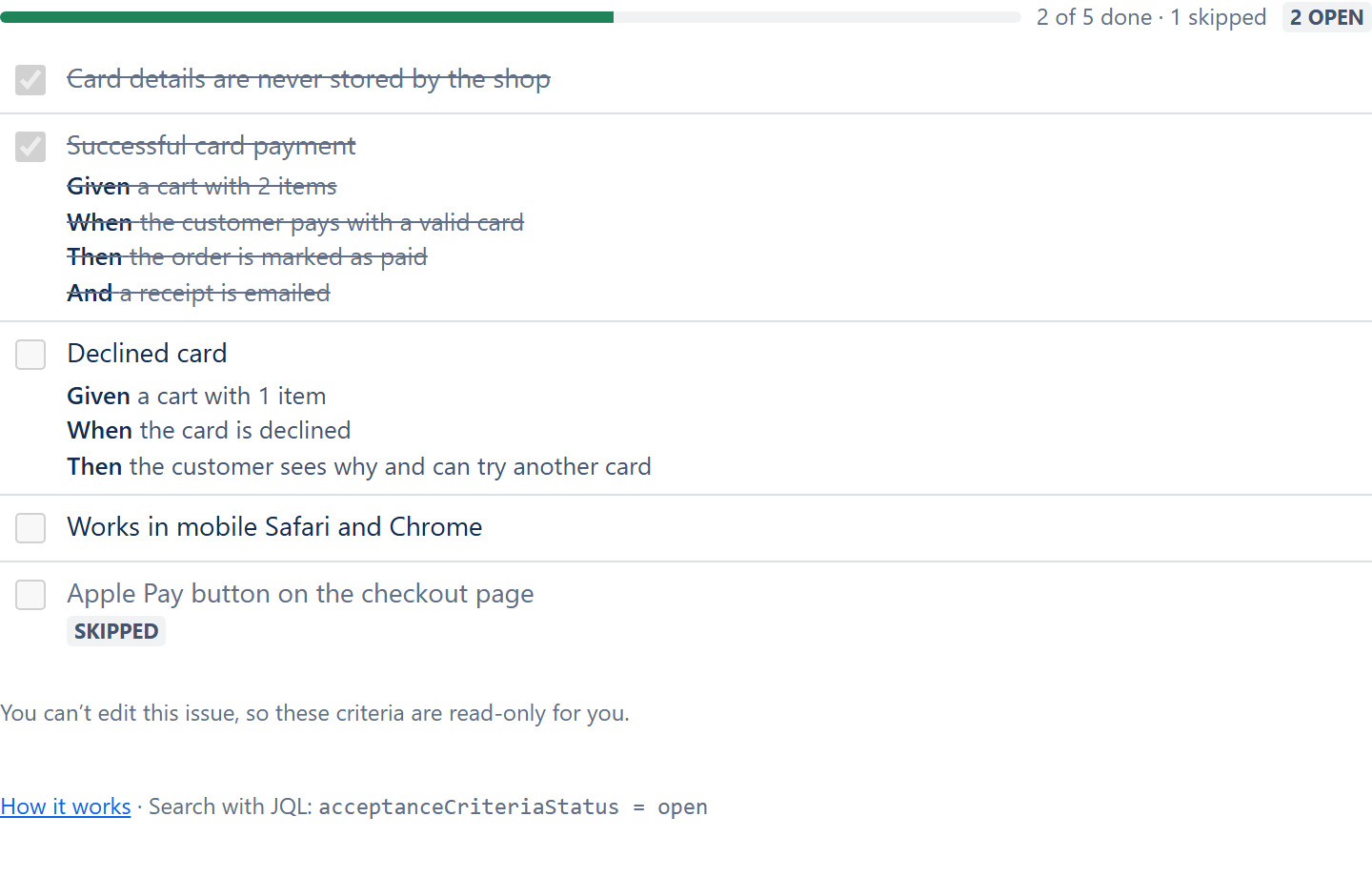
People without the Edit issues permission see the list and the progress with greyed-out checkboxes, no buttons and no form, and a note that the criteria are read-only for them.