Use it
Templates and defaults
Most teams check the same things on every story: reviewed, tested, documented. A template holds that list; a default rule puts it on every new issue.
Add a template to an issue
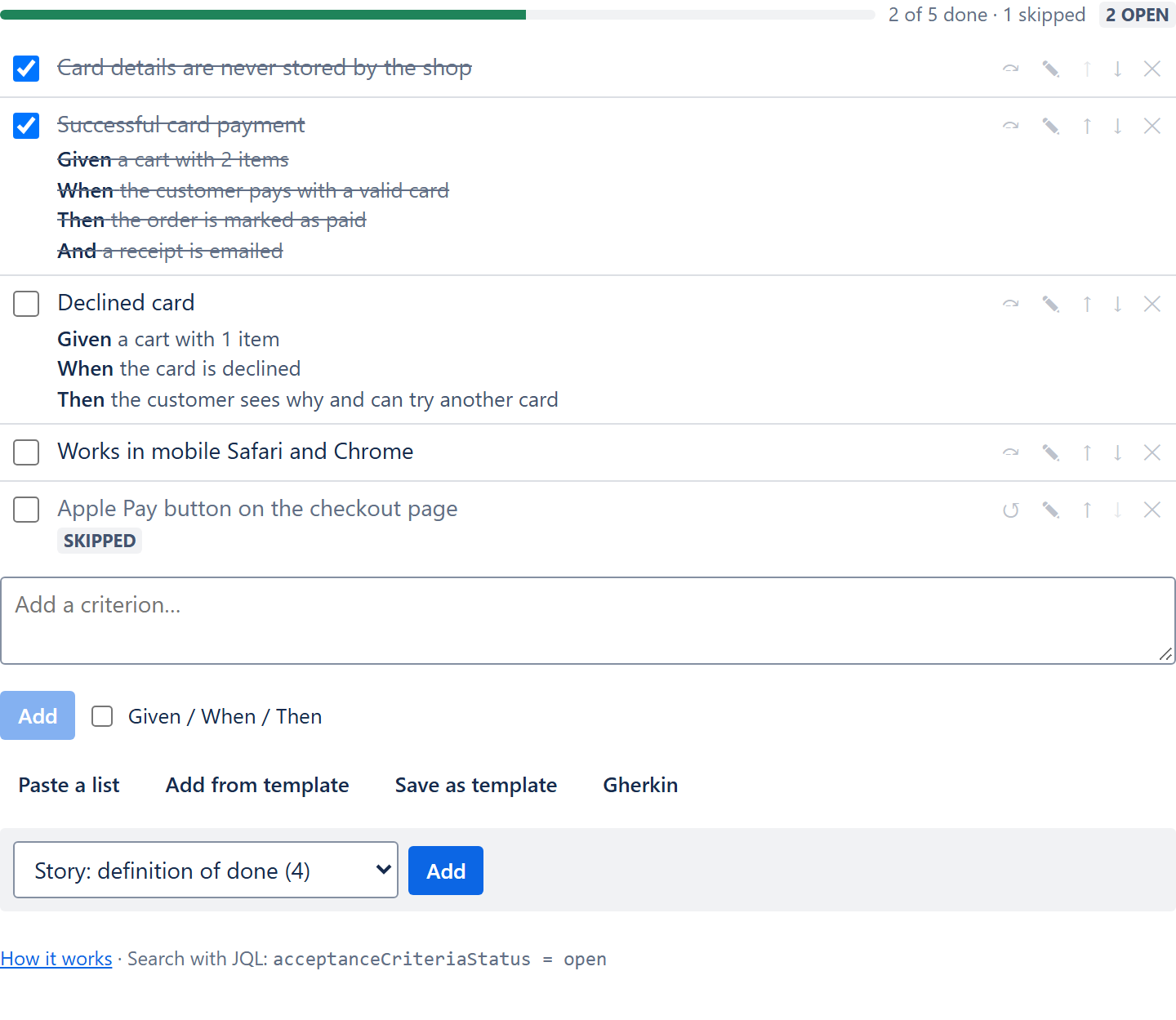
On the issue, click Add from template.
The button appears once at least one template exists.
Choose the template (the number shows how many criteria it has) and click Add.
Its criteria are added after the existing ones, all to do.
Save an issue's criteria as a template
Click Save as template, type a name and click Save.
The template copies the criteria and their Given/When/Then steps, without their statuses. Names must be unique.
Manage templates (Jira administrators)
Open the app settings: in Atlassian Administration (admin.atlassian.com) choose your site, open Connected apps, click ••• next to FeatureBridge Lite – Acceptance Criteria and choose Configure. From Jira, Apps → Manage your apps leads to the same page.
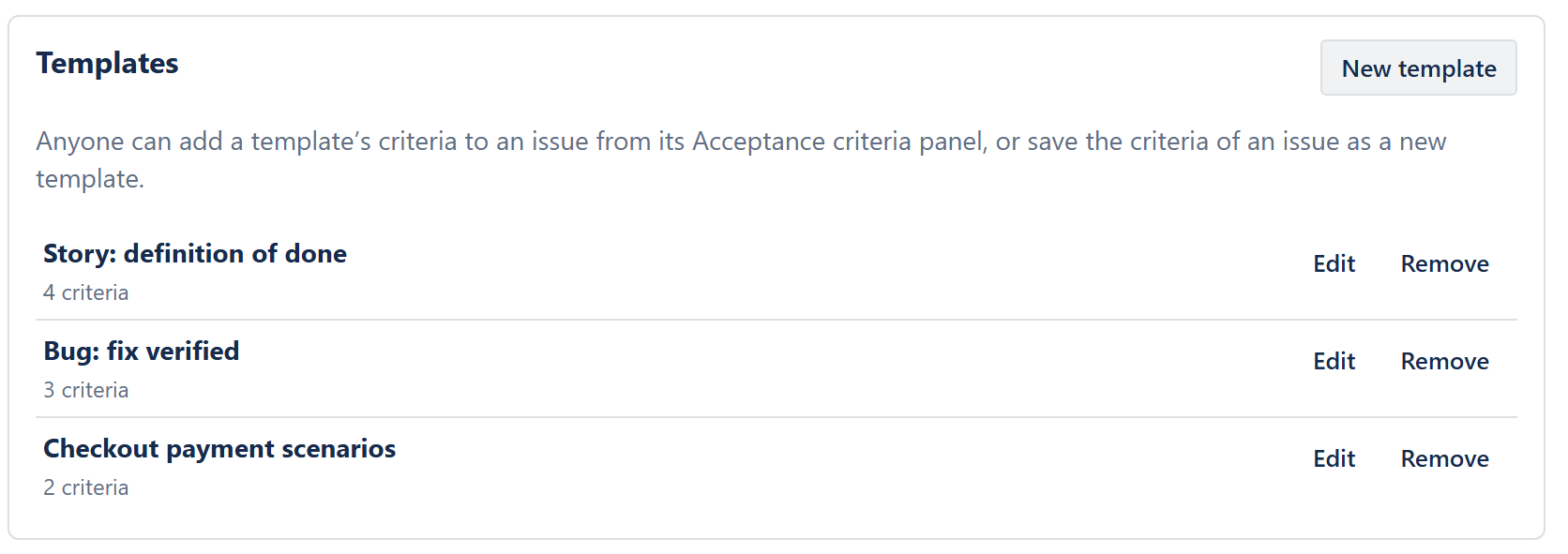
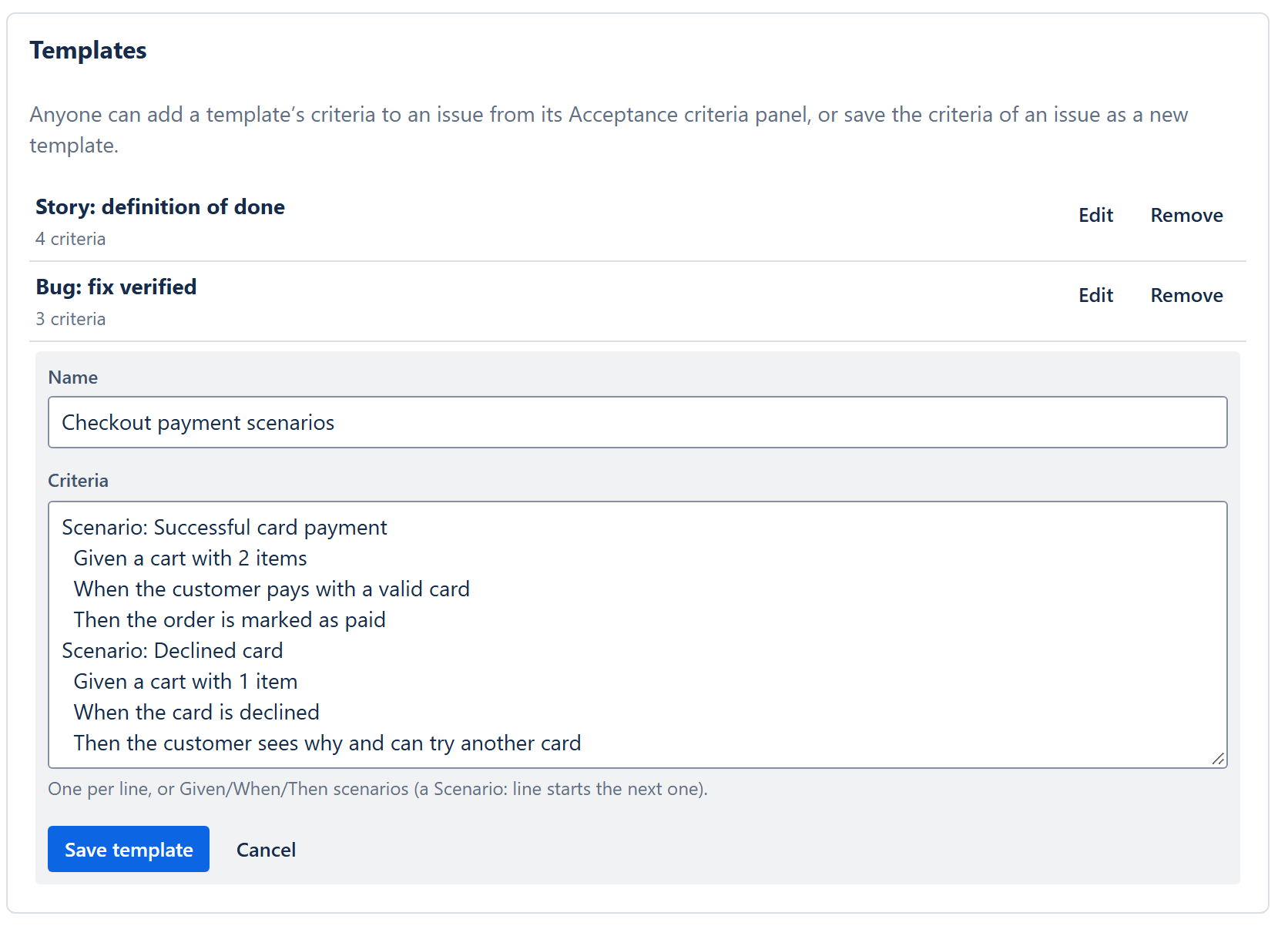
- New template or Edit: a name and the criteria as text, one per line, or Given/When/Then scenarios where a Scenario: line starts the next one (the same rules as Paste a list).
- Remove deletes the template and any default rule that used it. Issues keep the criteria they already have.
Default templates for new issues
Under Default templates for new issues, add a rule per project, optionally for one issue type. When an issue is created, it gets the criteria of the matching template.
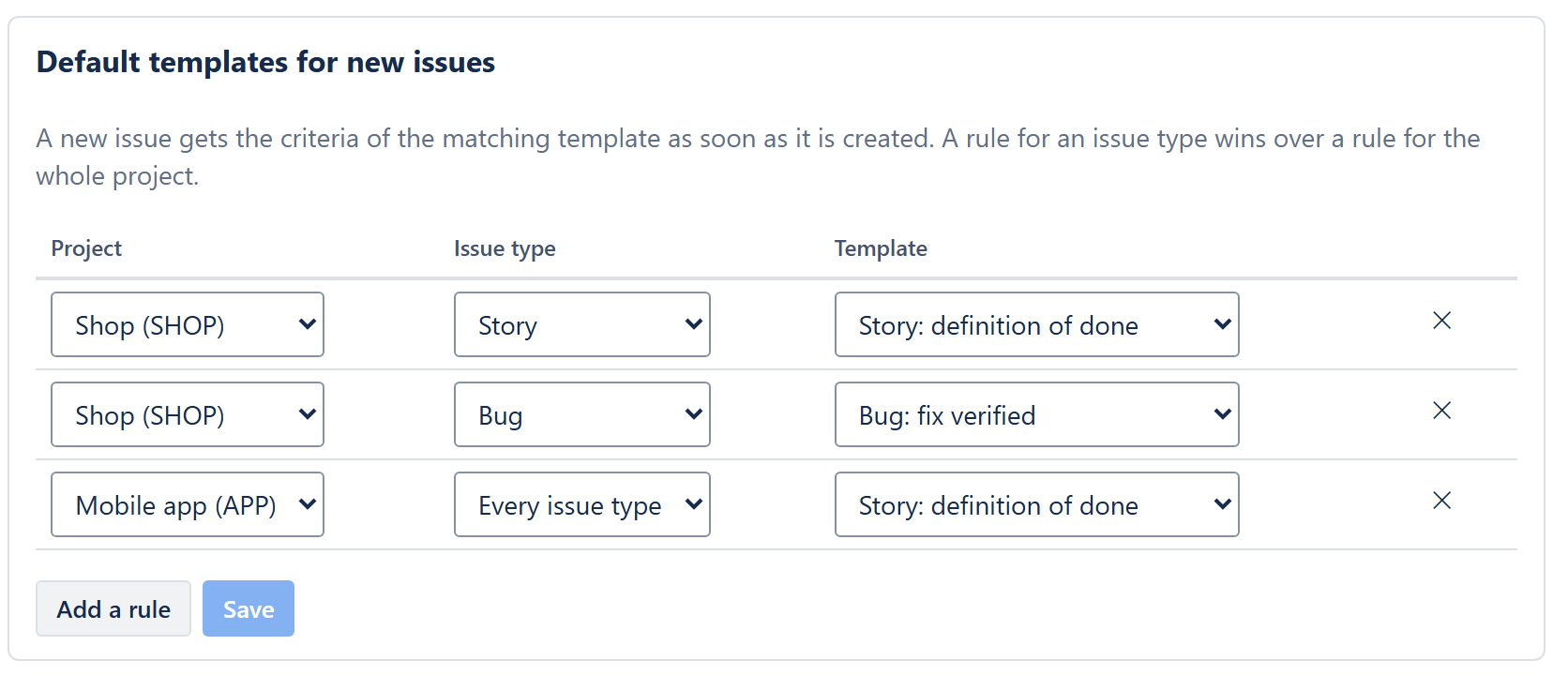
- A rule for the issue type wins over a rule for Every issue type in the same project.
- Click Save after changing rules. Rules without a project or template are left out.
- The criteria arrive a few seconds after the issue is created (Jira sends the event with a short delay); refresh the issue if the panel was already open.
- An issue that already has criteria when the event arrives (for example a clone) is left as it is.
Limits
Up to 100 templates, 100 criteria per template and 200 default rules.