
Get started
Install and connect HubSpot
A Jira administrator installs the app and pastes a HubSpot key once. After that, everyone who can edit issues can link records.
1. Install the app
Open the listing
In Jira, go to Apps → Explore more apps and search for Revenue Impact, or open the app on the Atlassian Marketplace.Install
Choose Get it now (free trial on paid tiers) and confirm the permissions.
2. Create a key in HubSpot
You need to be a HubSpot super admin (or have Developer tools access). The key only needs to read.
Open Service Keys
In HubSpot, click the settings gear, then Integrations → Service Keys → Create service key. If your account has no Service Keys yet, use Integrations → Legacy Apps → Create legacy app → Private instead.Name it and add the scopes
Call itRevenue Impact for Jiraand add these scopes:Scope Why crm.objects.companies.readCustomer names and their deals crm.objects.deals.readDeal amounts, stages and ARR crm.objects.tickets.readLinking HubSpot tickets (optional) crm.schemas.deals.readChoosing which deal property is ARR Copy the key
Create the key and copy it. HubSpot shows it once; you can create a new one at any time.
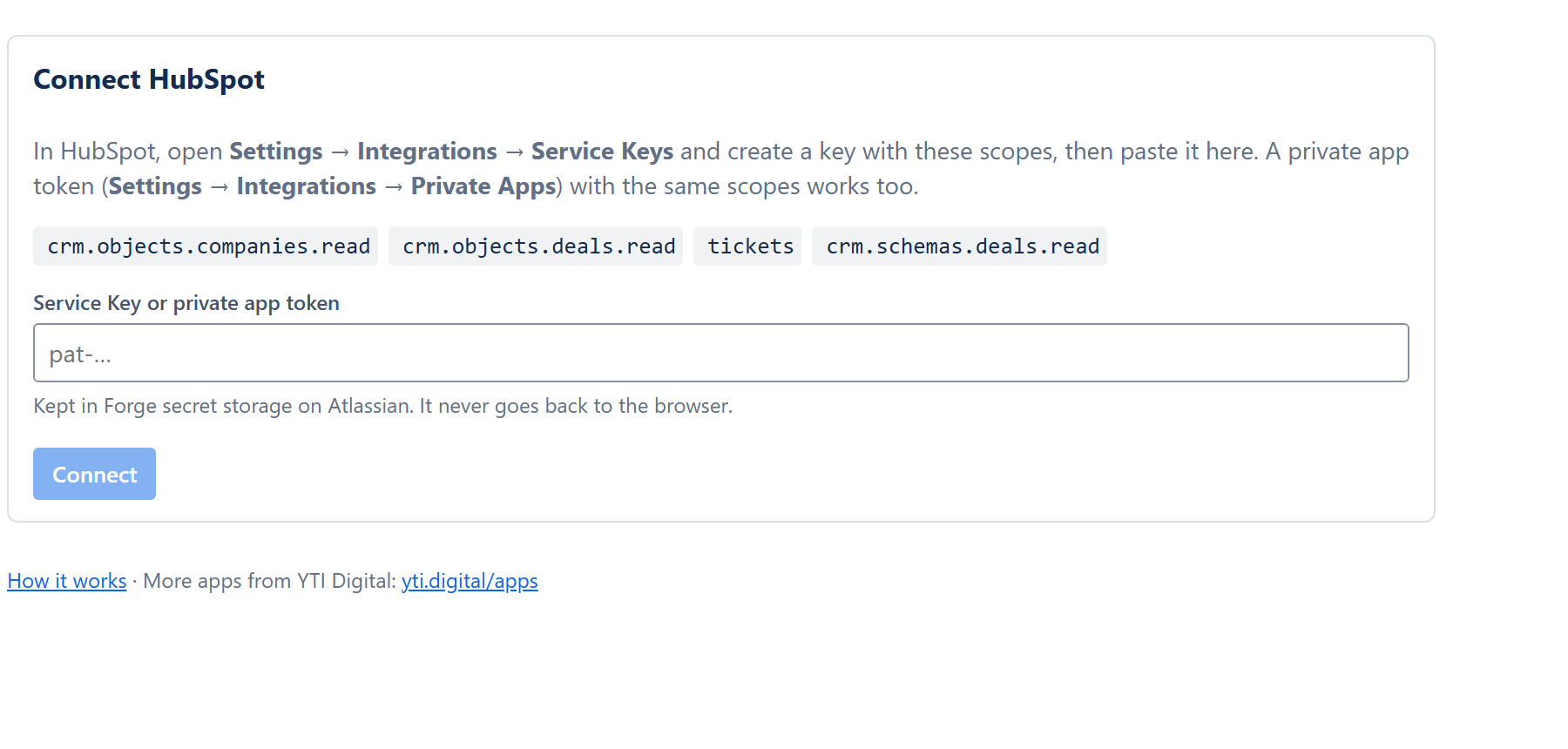
3. Paste it into Revenue Impact
Open the app settings
In Jira, go to Apps → Manage apps, find Revenue Impact and choose Configure.Connect
Paste the key and choose Connect. The app checks the key and the scopes and shows your HubSpot portal.
Where the key is kept
The key is stored in Atlassian's Forge secret storage for your site. It never goes back to the browser and never reaches YTI Digital. Disconnecting deletes it.
4. Add the fields where you need them
The app adds three read-only number fields: Linked open deal value, Linked ARR and Linked customers. Add them as columns in your issue list, to card layouts or to dashboards. Next: link records to an issue.