
Use FeatureBridge
Write scenarios
Every issue has one feature: the Gherkin text in its Scenarios panel. Anyone who can edit the issue can edit it.
Edit and save
- Click Edit, change the text, then Save (or Ctrl+S). Cancel discards your changes.
- Keywords, tags, strings and tables are highlighted. Line numbers help when someone refers to a step.
- The header line sums up the feature:
3 scenarios · 11 steps · @checkout · v4, 3 hours ago.
Mistakes explained in plain words
FeatureBridge checks the Gherkin while you type. A problem is marked on its line and explained above the editor, and Save stays disabled until the text is valid.
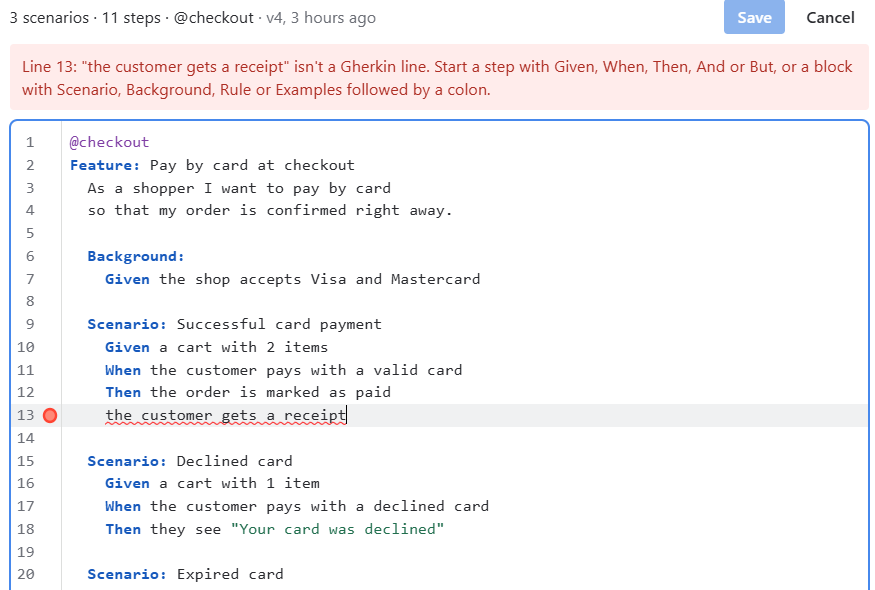
| Message | What to do |
|---|---|
| "… isn't a Gherkin line" | Start the line with a step keyword (Given, When, Then, And, But) or a block keyword followed by a colon (Scenario:, Background:, Rule:, Examples:). |
| "… looks like a table row" | A table must follow a step or Examples:. |
| "Only one Feature: is allowed per issue" | Split it: one issue, one feature. |
| "This table row has a different number of cells" | Every row needs as many | cells as the header row. |
Versions
Every save creates a new version (v1, v2, …) with its author and time, including changes that arrive from Git or an import.
Two people editing at once
If someone saves a newer version while you are editing, your save is not applied. The panel says so, keeps your text in the editor and shows which version is newer, so you can copy your changes over and save again.
Tags and keys
Tags work as usual (@checkout @payments). A tag with the issue key, such as @SHOP-12, is optional on the issue itself, but it is how imported files and CI reports find their issue.
Tip
Once a repository is connected, every save is committed to Git as well. See How sync works.