
Git sync
How sync works
One Jira site connects to one repository, branch and folder. Changes flow both ways, and a change is never overwritten without you deciding.
Connect a repository
GitHub →
Fine-grained personal access token, about 2 minutes.
GitLab →
gitlab.com, personal or project access token.
Bitbucket Cloud →
Repository access token.
All three use the same settings page: Jira settings → Apps → FeatureBridge (Jira administrators only).
Which file belongs to which issue
- The issue key in the file name:
features/SHOP-12-checkout.feature, or - a tag on the feature:
@SHOP-12.
When an issue is saved for the first time after connecting, FeatureBridge creates <folder>/<KEY>-<feature-name>.feature. Files outside the folder, files that are not .feature and pushes to other branches are ignored.
Jira → Git
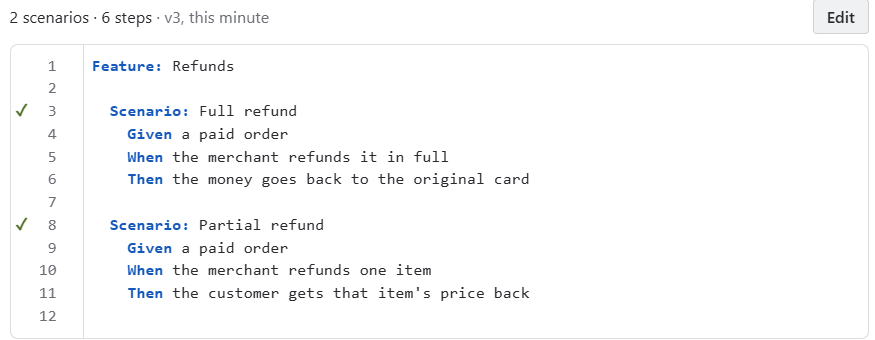
Saving on an issue commits the file to the branch, usually within a few seconds. The panel shows Committing to … and then Synced with GitHub: features/… with a link to the file.
Git → Jira
A push to the branch updates the issues whose files changed, also within seconds. FeatureBridge recognises its own commits and skips them. Large pushes are handled too: if the push doesn't list every file, FeatureBridge asks the Git host for the changes.
Conflicts
If the scenarios changed in Jira and in Git since the last sync, nothing is overwritten. The issue shows Not in sync with Git with both versions:
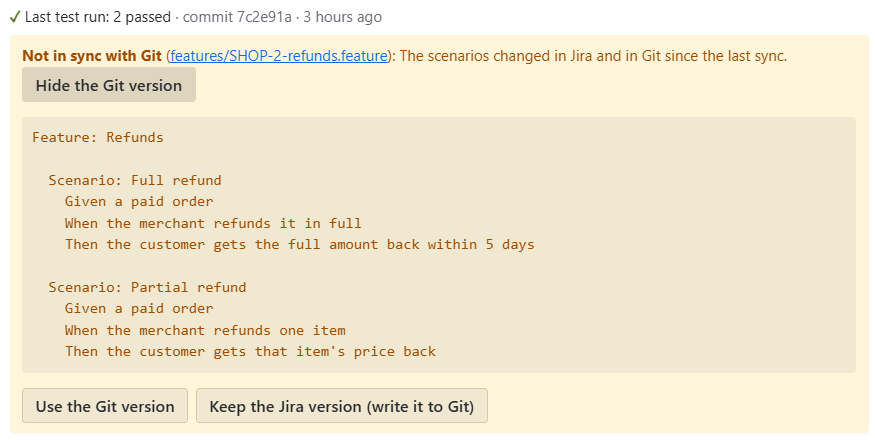
- Use the Git version replaces the scenarios in Jira with the file from Git.
- Keep the Jira version (write it to Git) commits the Jira text over the file.
Want parts of both? Copy from Show the Git version, edit in Jira, then keep the Jira version.
Every sync state
| The panel says | What happened | What to do |
|---|---|---|
| Synced with … | Jira and Git are the same. | Nothing. |
| Not in … yet | The issue has no file yet. | Save the issue to create it. |
| Changed in Jira and in Git | Both sides were edited. | Choose a version. |
| Git version has a Gherkin error | The pushed file is not valid Gherkin, so it was not imported. | Fix the file in Git and push, or keep the Jira version. |
| File was deleted in Git | Jira kept its scenarios. | Keep the Jira version to restore the file, or leave it. |
| File is missing in Git | The linked file is gone, for example after a rename. | Keep the Jira version to write it again. |
| A file with this name already exists | Git already had a different file for this issue. | Choose a version. |
Changing the repository
Connecting a different host, repository, branch or folder drops the links to the old files (the scenarios in Jira stay). Afterwards click Import from the repository on the settings page to link the files that are already there. Disconnect removes the token and settings; files in Git are never deleted.
Security
Tokens are kept in Forge secret storage and never shown again. Webhooks are verified with an HMAC-SHA256 signature (GitHub, Bitbucket) or a secret token (GitLab).