
Git sync
Connect GitHub
You need: admin rights in Jira, and write access to the repository on GitHub.
1. Create a token on GitHub
On GitHub, open Settings → Developer settings → Fine-grained tokens → Generate new token.
Name it, for example FeatureBridge, and pick an expiration date.
When the token expires, sync stops until you save a new one in Jira.
Set Resource owner to the user or organization that owns the repository.
Under Repository access, choose Only select repositories and pick the repository.
Under Repository permissions, set:
Permission Access Contents Read and write Webhooks Read and write Metadata (read-only) is added by GitHub automatically.
Click Generate token and copy it (it starts with
github_pat_).
Organization repositories
Some organizations must approve fine-grained tokens first. If Jira says the token has no access, ask an organization owner to approve it.
2. Connect it in Jira
Open Jira settings → Apps → FeatureBridge.
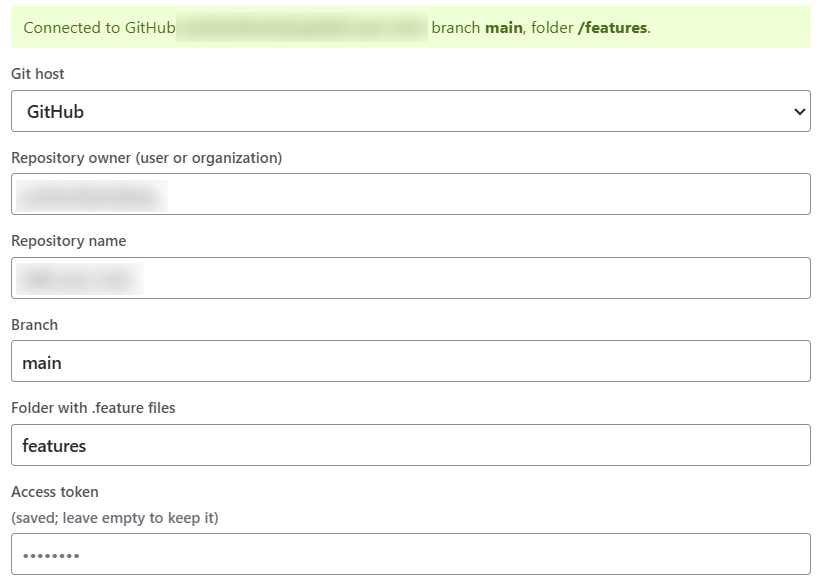
Fill in the Git sync form:
- Git host: GitHub
- Repository owner: the user or organization, for example
acme - Repository name: for example
shop - Branch: the branch to sync, usually
main - Folder with .feature files: for example
features - Access token: the token from step 1
Click Save.
FeatureBridge checks the token and creates the push webhook. You should see Connected to GitHub ….
3. Link files that already exist
If the folder already has .feature files, click Import from the repository further down the settings page. See Import scenarios.
If the webhook could not be created
Without the Webhooks permission the page shows a URL and a secret instead. Add the webhook by hand in the repository: Settings → Webhooks → Add webhook, paste the URL as Payload URL, choose content type application/json, paste the Secret and keep Just the push event.