
Use Chatline
Choose what is posted
Every connected space has its own settings: which issues, which changes, how cards look, and a daily digest. Change them any time with Edit.
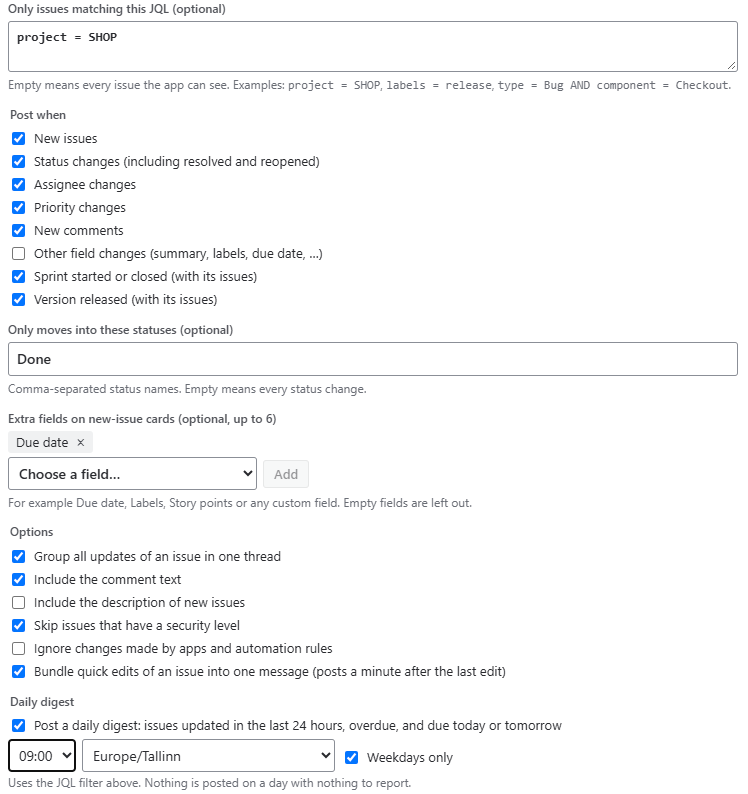
Which issues: the JQL filter
Leave the filter empty to post changes of every issue, or enter any JQL that Jira accepts. Chatline checks the issue against the filter at the moment it changes, and checks the filter when you save it.
project = SHOP
project = SHOP AND priority in (High, Highest)
type = Bug AND component = Checkout
labels = release AND statusCategory != Done
assignee in membersOf("support-team")
One space per audience
A team space with project = SHOP, an incident space with priority = Highest and only new issues, a release space with only Version released.
If a filter stops working later (for example a field used in it was deleted), the space shows the error on the settings page and nothing is posted until you fix the filter.
Which changes
| Change | Posted when |
|---|---|
| New issues | an issue is created |
| Status changes | an issue moves to another status, is resolved or reopened |
| Assignee changes | an issue is assigned, reassigned or unassigned |
| Priority changes | the priority changes |
| New comments | someone adds a comment that everyone can see |
| Other field changes | summary, labels, due date, components, versions, custom fields, attachments |
| Sprint started or closed | a sprint with issues from the filter starts or is completed (Jira Software) |
| Version released | a version with issues from the filter is released |
Changes nobody reads in a chat are left out: rank (moving cards on a board), time tracking, sprint field and link changes. Sprint and release messages are described in What messages look like.
Only moves into these statuses
With Status changes on, you can name the statuses that matter, for example Done, Blocked. Then only moves into those statuses are posted. Names are checked against your Jira site when you save, so a typo is caught at once. Leave it empty to post every status change.
Extra fields on new-issue cards
New-issue cards always show status, priority, assignee and project. Add up to six more fields, system or custom: due date, labels, components, story points, sprint, a select list. Empty fields are left out of the card.
Options
Group all updates of an issue in one thread
On by default. The first message about an issue starts a thread; later updates reply in it.
Bundle quick edits of an issue into one message
On by default. Several edits of the same issue within a minute become one message, posted a minute after the last edit. Edits that cancel each other out (assigned and unassigned again) post nothing. Turn it off to post every edit at once.
Include the comment text
On by default. Off posts only that someone commented, with a link to the comment.
Include the description of new issues
Off by default. On adds the first 400 characters of the description to the new-issue card.
Skip issues that have a security level
On by default: issues limited by an issue security level never leave Jira, also not in digests, sprint or release lists.
Ignore changes made by apps and automation rules
Off by default. On drops changes whose author is an app, such as Automation for Jira.
Daily digest
Each space can get one summary a day at the hour you choose. See Daily digest.
Always held back
- Comments limited to a project role or a group.
- Internal comments in Jira Service Management.
- Anything while the Chatline license of the site is not active.
Turn a space off to pause it without losing its settings.