Get started
Install and connect a space
About five minutes. You need to be a Jira administrator, and a member of the Google Chat space.
1. Install the app
Open Chatline for Google Chat on the Atlassian Marketplace and click Try it free or Get it now.
Choose your Jira site and confirm the permissions.
2. Create a webhook in Google Chat
In Google Chat in a browser, open the space that should receive Jira updates.
Click the space name, then Apps & integrations.
Click Add webhooks, give it a name (for example Jira) and save.
Copy the webhook URL. It starts with https://chat.googleapis.com/v1/spaces/.
Treat the URL like a password
Anyone with the URL can post to the space. Chatline stores it encrypted and never shows it again.
Webhooks cannot be added from the Google Chat mobile app.
3. Connect the space in Jira
In Jira open Settings (gear icon) → Apps → Chatline for Google Chat.
You can also find it in Atlassian Administration → Connected apps → Chatline → Configure.
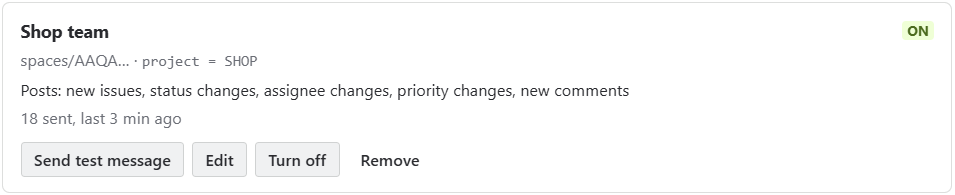
Click Connect a Google Chat space, enter a name and paste the webhook URL.
Optional: limit the space to some issues with a JQL filter, and choose which changes to post.
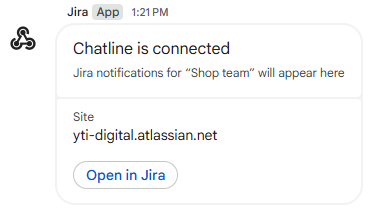
Click Connect, then Send test message.
A card saying Chatline is connected appears in the space. From now on, matching changes are posted within seconds.