
Use Chatline
Jira Automation action
Chatline adds a Send Discord message action to Jira Automation. Any rule can post its own text to a connected channel.
Add the action to a rule
In Jira open Settings → System → Global automation (or the automation of a project) and create or edit a rule.
Choose the trigger, for example Work item created or Work item transitioned.
Add an action and search for Send Discord message.
The first time, Jira asks to connect Automation to Chatline. Click Connect.
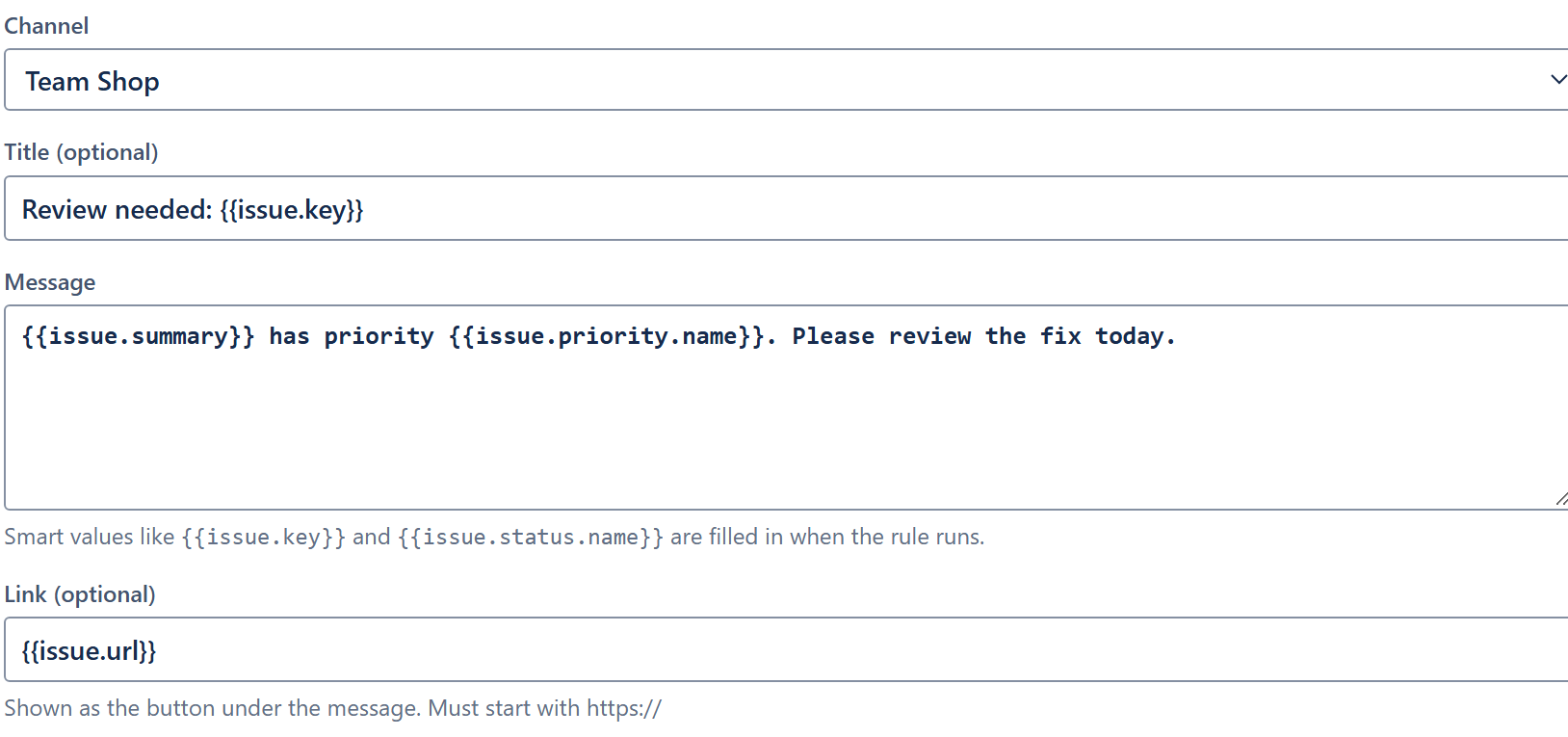
Choose the channel, and write the title, the message and an optional link.
Click Next, then Save and enable (or Update).

Smart values
Title, message and link accept Jira smart values. They are filled in when the rule runs.
{{issue.key}} moved to {{issue.status.name}} by {{initiator.displayName}}
{{issue.summary}} is due {{issue.duedate.shortDate}}
Release {{version.name}} is out: {{version.description}}
{{issue.url}}
The link must start with https://. In Discord it turns the title of the message into a link.
Jira fills in smart values such as status names in the language of the rule's actor, so a rule run by an account with another Jira language posts those names in that language.
Who can use it
Anyone who can edit automation rules can pick a channel; only Jira administrators can connect channels. Messages from rules count like any other message in the channel's delivery status.